How to generate a color palette
Press the space bar for a new palette, lock the colors you like, then save or export it.
Open the palette generatorOpen the generator and press Space
The generator opens with a fresh palette. Press the space bar (or the Generate button) as often as you like; every press makes a new set of colors. Click a code such as 2A9D8F to copy it.
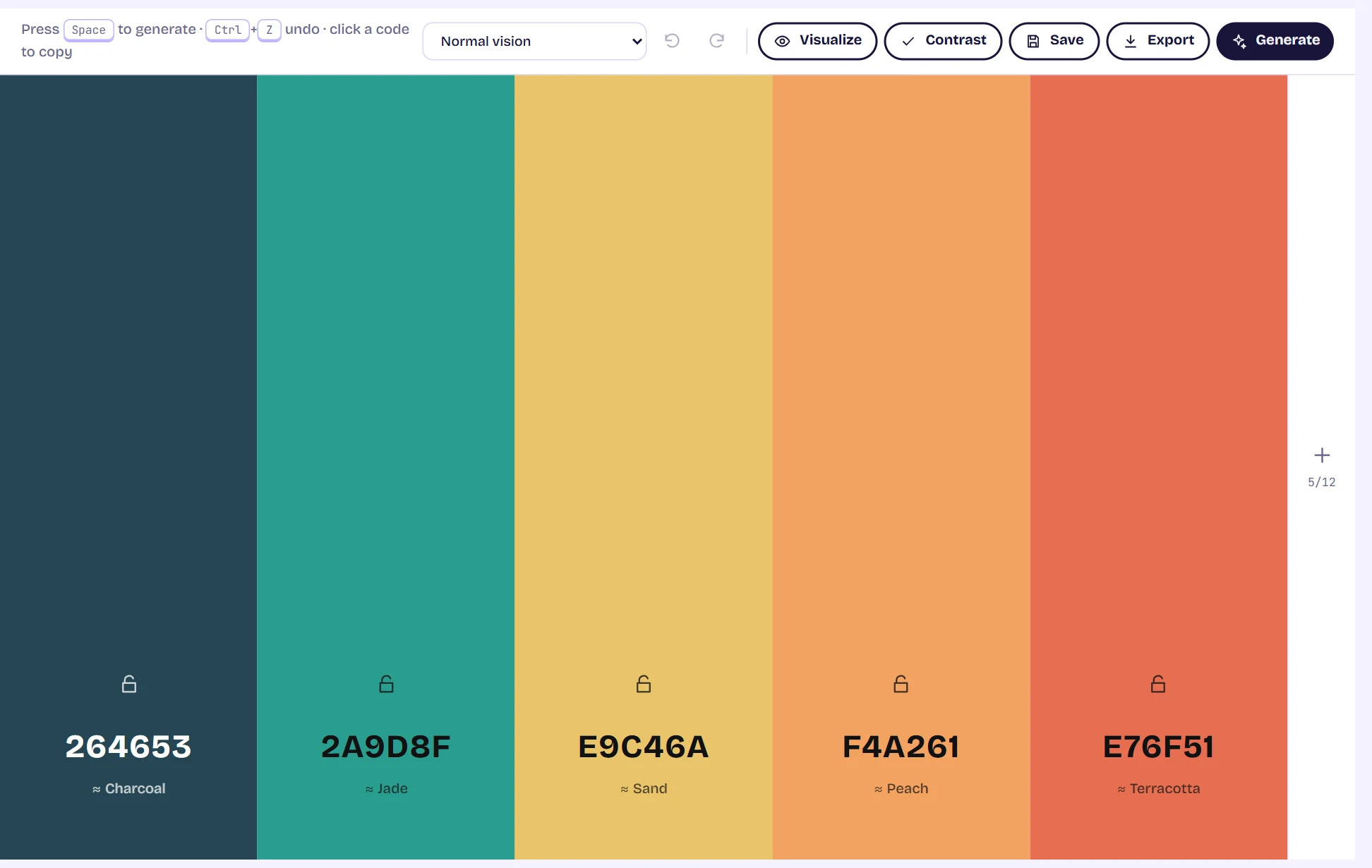
The palette generator showing five full-height color columns with HEX codes and the toolbar above them Lock the colors you want to keep
Hover a column to see its tools. Press the padlock at the bottom of the column to lock it, then generate again: locked colors stay and the rest change around them. The other buttons remove a color, move it earlier or later, show its shades, edit it, add it to your wishlist (the heart) or copy its code.
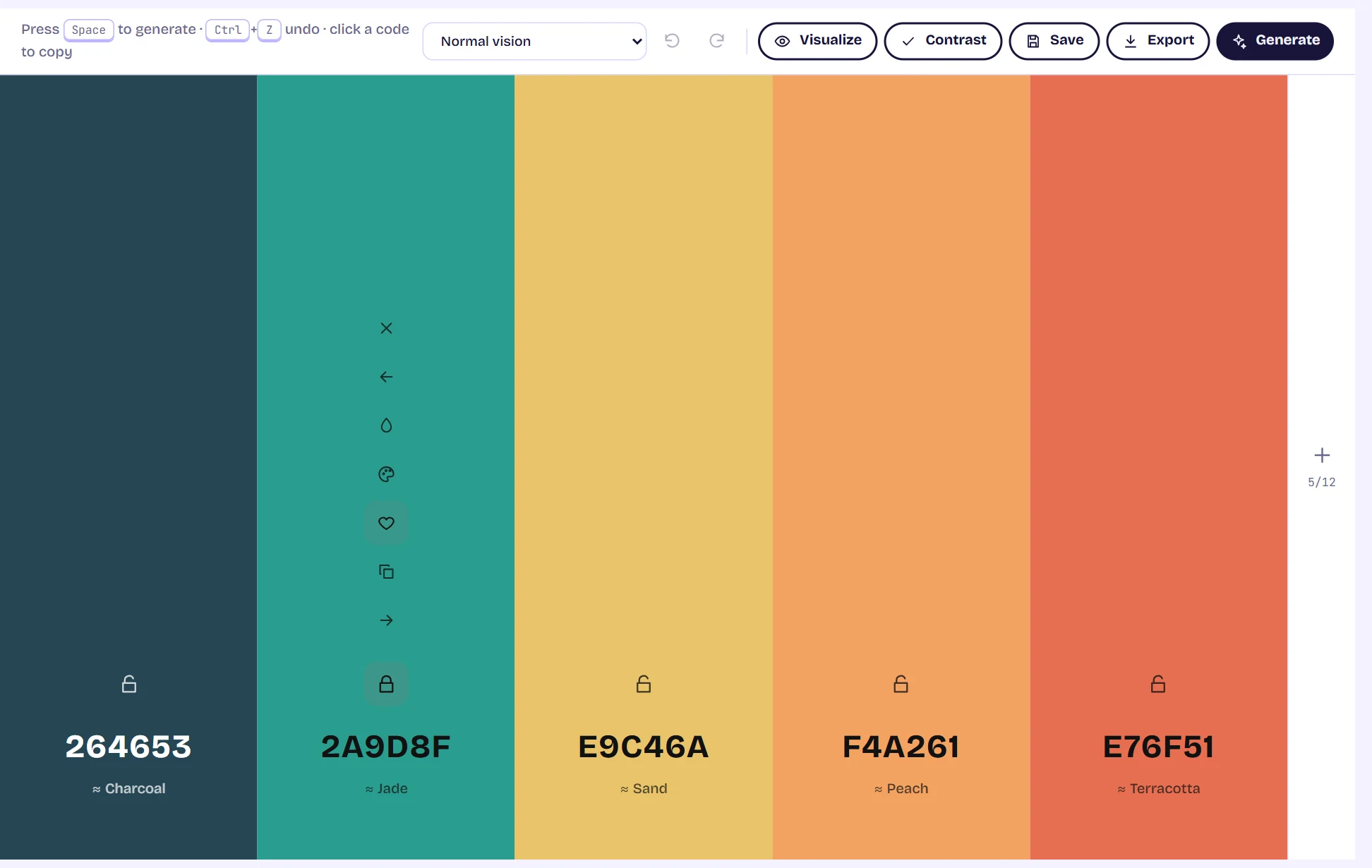
The second color column locked, with its tool buttons visible: remove, move, shades, edit, heart and copy Undo, redo and the color-vision preview
Every change can be undone with the arrows in the toolbar, or with Ctrl+Z and Ctrl+Shift+Z. The dropdown beside them previews your palette as someone with a color-vision difference would see it. It is a preview, not an accessibility certificate.
Save, check or export
Save keeps the palette in your library. Contrast opens every pairing in the contrast matrix, and Visualize shows the palette on real layouts. Export opens the download dialog: choose a format, then Copy or Download.
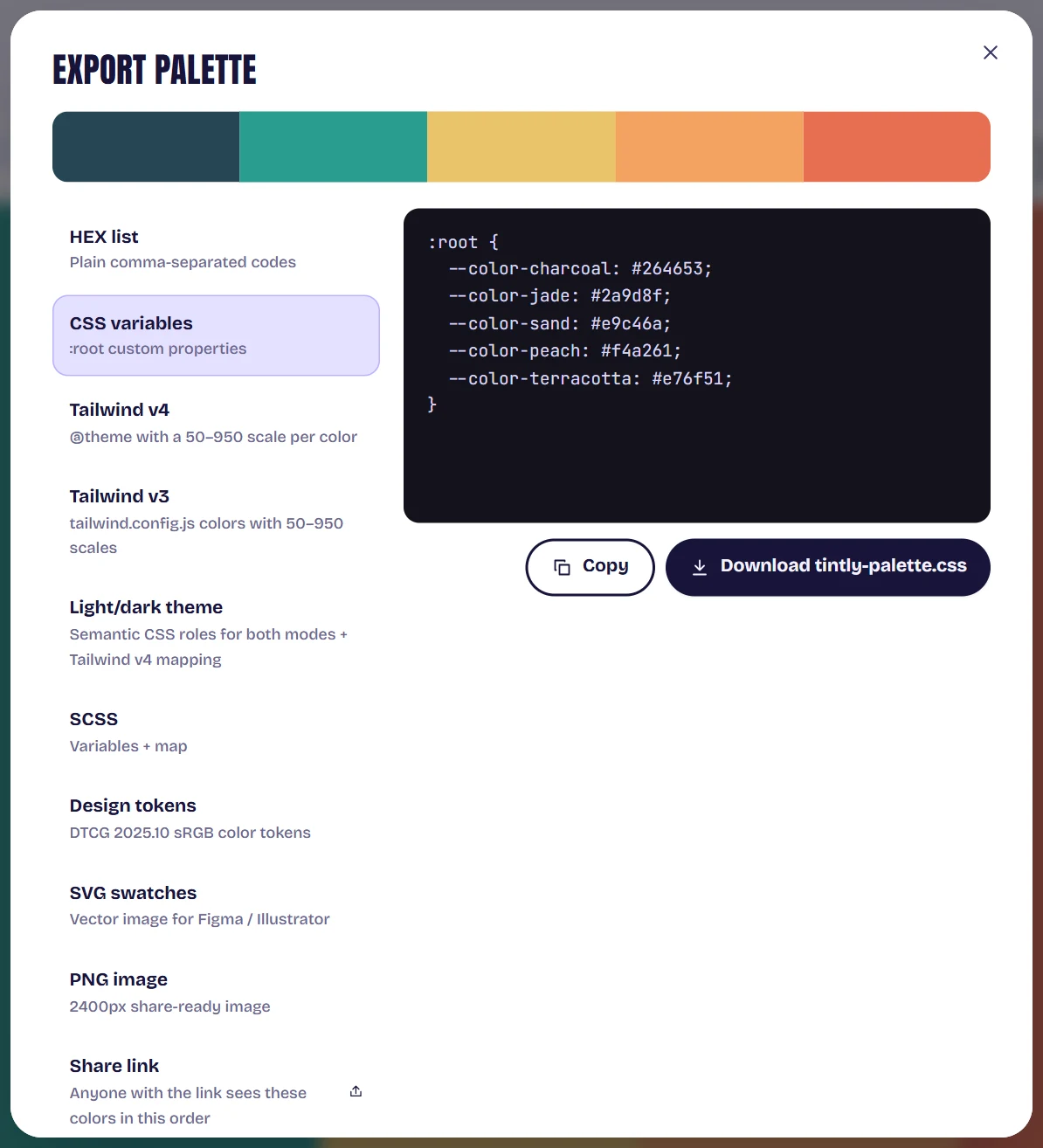
The Export palette dialog with a format list on the left and a CSS preview on the right
Tips
- Share the page address: it contains your colors, so anyone who opens it sees the same palette in the same order.
- Lock your brand color first, then press Space until the supporting colors suit it.
- The + button at the right edge adds a color, up to 12.