How to use your wishlist and library
Heart colors and palettes, find them again, back them up and sync them.
Open your wishlistTap the heart
Hearts appear on generator colors, palette cards, color tiles and each color's page. A filled red heart means it is on your wishlist; tap again to remove it. The heart in the top bar shows how many items you have and opens the wishlist.
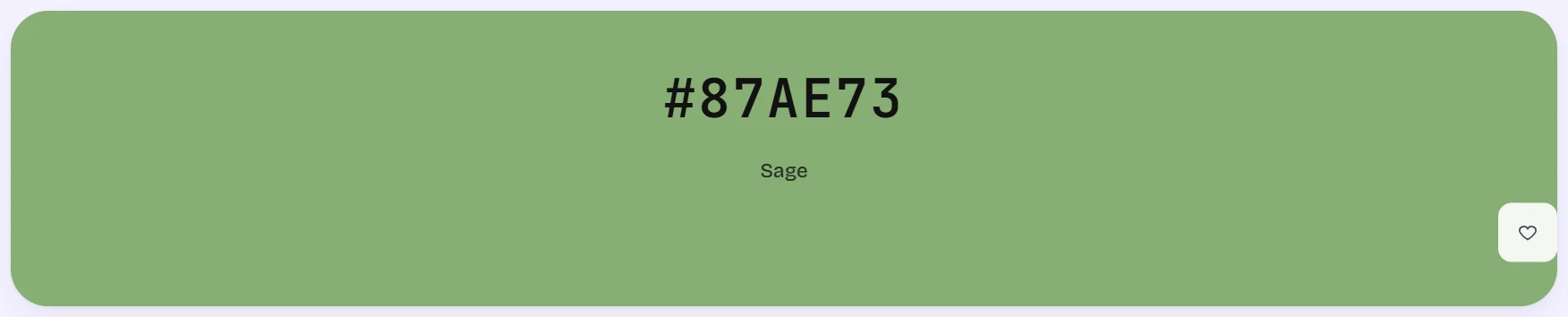
A color page with a heart button at the right of the color banner Open your wishlist
The Wishlist has two tabs: hearted Colors and hearted Palettes. Click a swatch to copy its code, open a palette in the generator, export it, or un-heart it.

The wishlist page with usage meters, Colors and Palettes tabs and five hearted color tiles Manage everything in the library
The Library also holds brand kits. It tells you where your work is stored: in this browser only, or synced to your account. Download backup saves everything to a file, and Restore backup merges a file back without overwriting what you have. You can search, rename, duplicate and delete saved palettes.
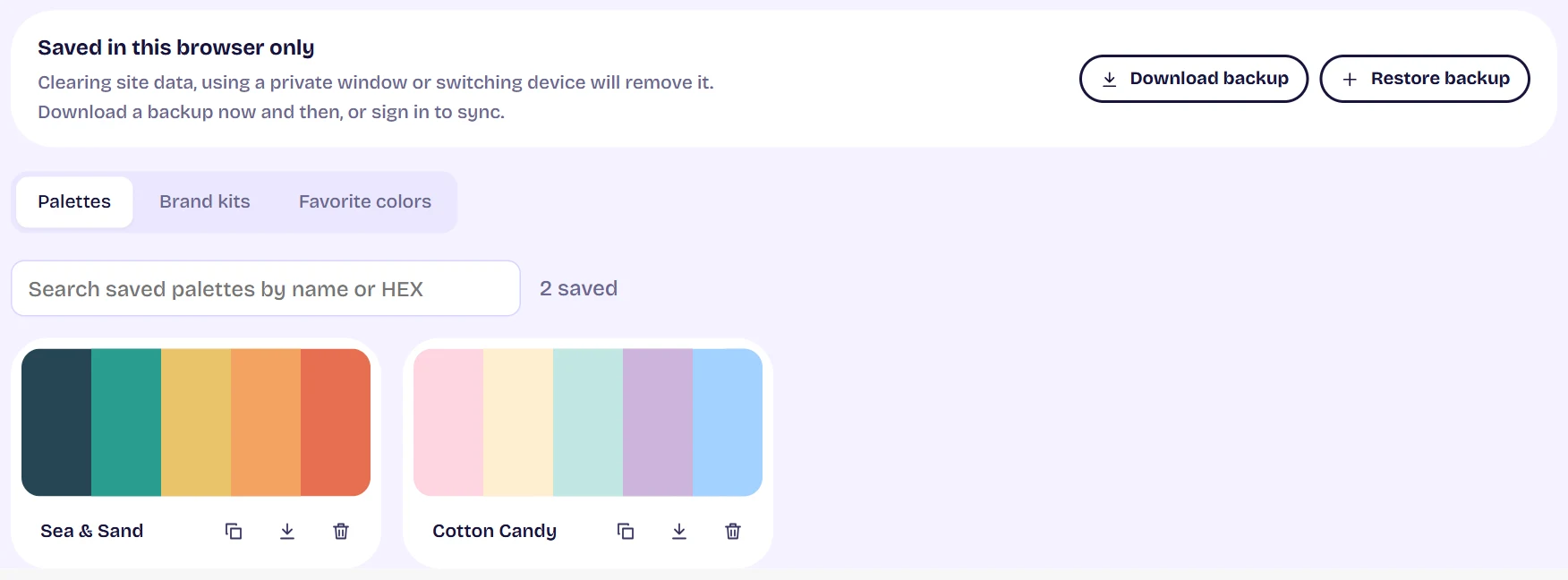
The library with a storage notice, backup buttons, usage meters and two saved palettes Sync with an account
Sign in and your saved library is copied to your account so it follows you to other devices. Signing out removes the copy from that browser, and warns you first if anything has not synced yet.
Tips
- Without an account, clearing site data deletes your wishlist. Download a backup now and then.