How to edit a photo
Apply filters and effects, adjust the look, rotate and download. The photo never leaves your device.
Open the photo editorOpen a photo
Drop a JPG, PNG or WebP (up to 25 MB) onto the box, or click it to choose one. It is read in your browser and is never uploaded.
Pick a filter, then fine-tune
Filters set the sliders for you: Vivid, Warm, Cool, Mono, Vintage, Fade and Drama, plus Retro pixels, Pop art, Duotone and Film, which also use the effects. Then adjust brightness, contrast, saturation, hue, blur, grayscale, sepia and invert yourself.
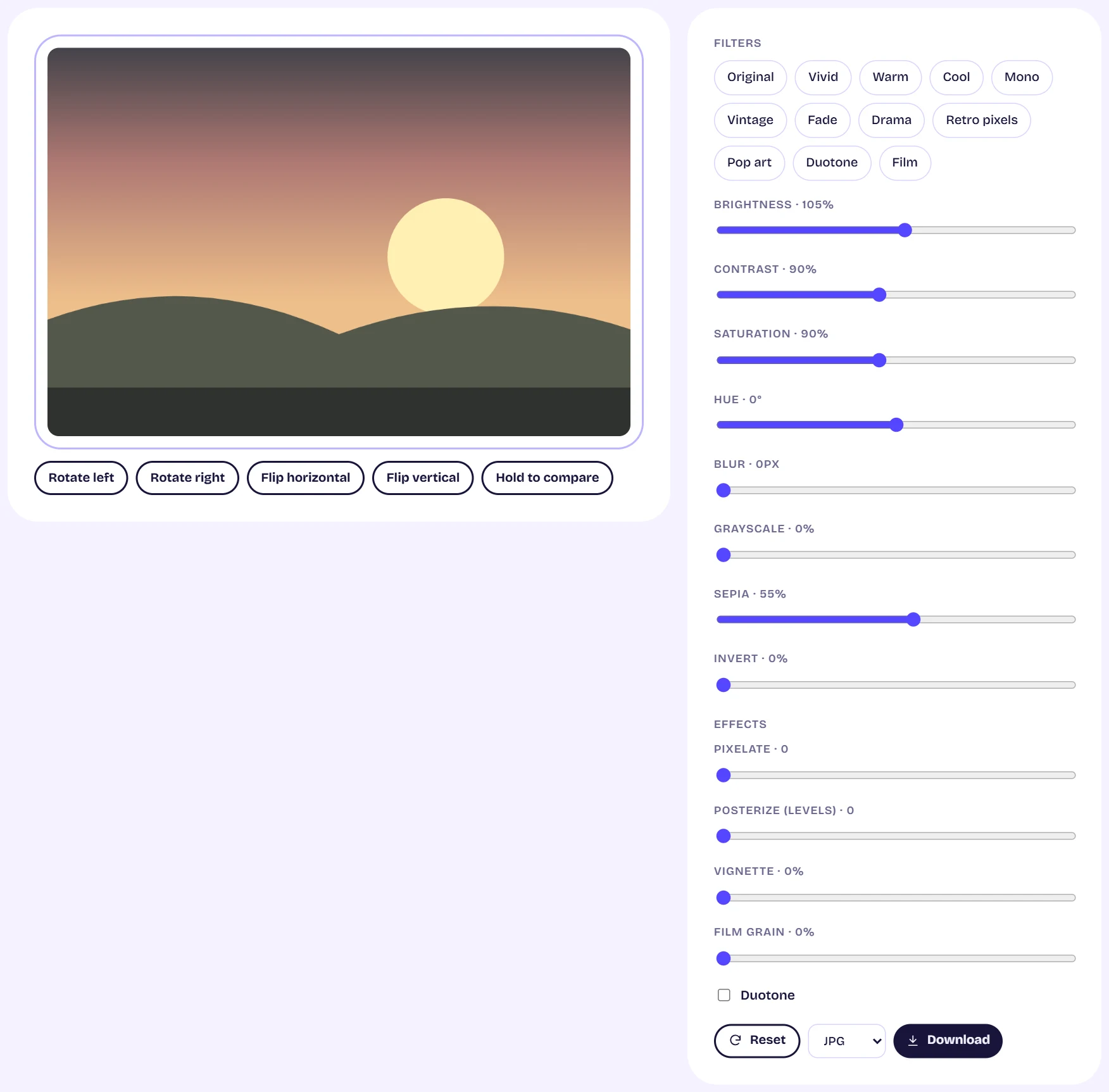
The photo editor showing a sunset photo with a Vintage filter applied, filter chips and sliders on the right Add effects
Effects are pixelate, posterize, vignette and film grain. Turn on Duotone to map shadows and highlights to two colors of your choice, for example a brand color pair.
Rotate, compare and download
Rotate and flip with the buttons under the photo. Hold the compare button to see the original. Choose JPG, PNG or WebP and press Download; the file is made on your device at up to 4096 pixels on the long side.
Tips
- Use PNG when you need lossless quality and JPG for smaller files.
- Reset puts every slider and effect back to neutral.