How to extract colors from an image
Drop in a photo, logo or screenshot and get a palette. The image never leaves your device.
Open the image color pickerAdd an image
Drop a JPG, PNG or WebP (up to 25 MB) onto the box, or click it to choose a file. Other file types and damaged files are refused with a message that says why.
Read the palette
Tintly samples the image and lists the main colors, most common first. Use Colors to extract to ask for 3 up to 8 colors; the palette updates without reloading the image.
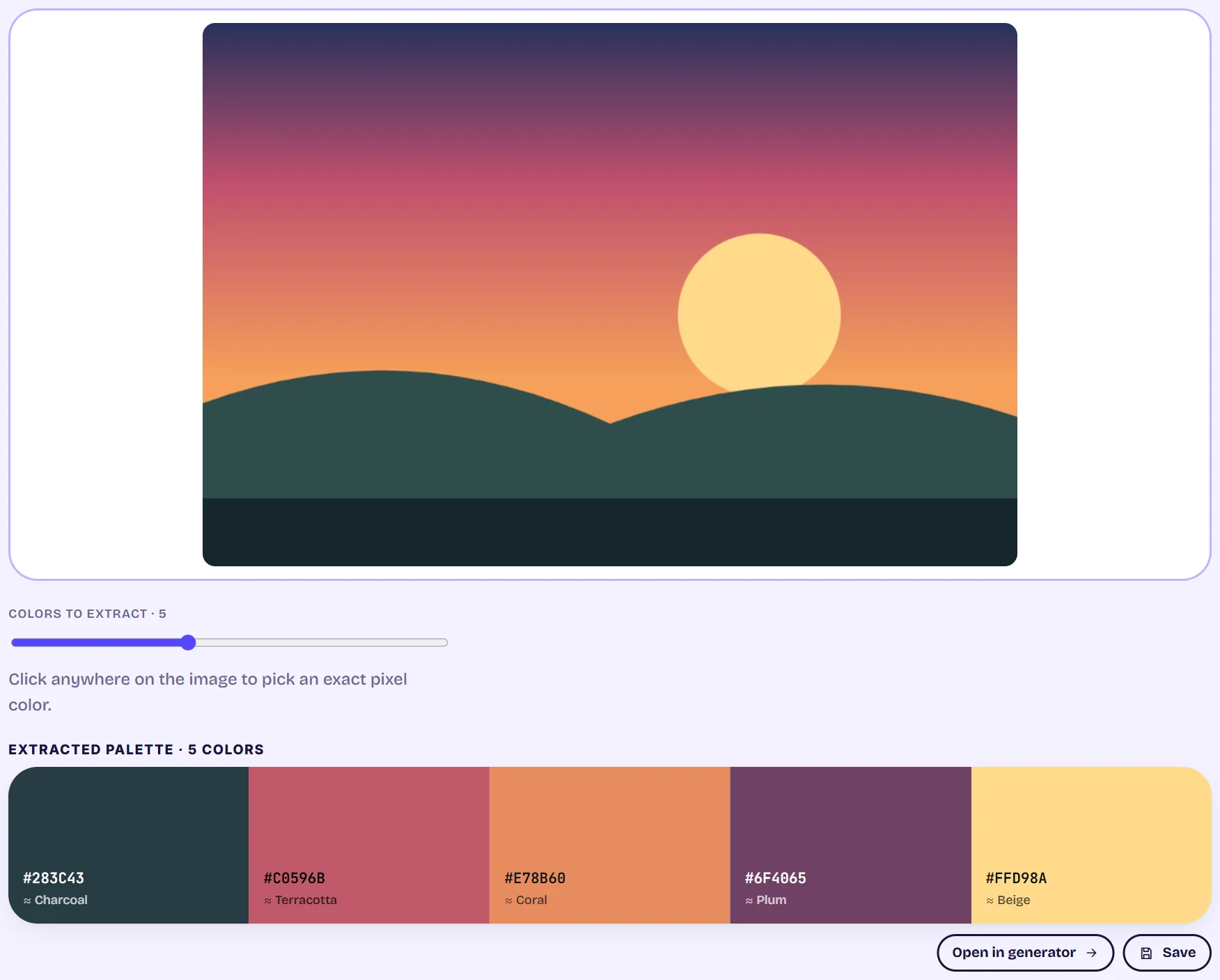
An uploaded sunset image with a slider for the number of colors and the five extracted swatches below it Pick an exact pixel
Click anywhere on the picture to copy the exact color under the pointer. A transparent spot is reported instead of guessed.
Use the palette
Open in generator carries the extracted colors across, and Save adds them to your library.
Tips
- The photo is decoded and sampled in your browser. It is not uploaded.
- Very large photos are scaled down for sampling, so they are no slower than small ones.