How to make a photo collage
Choose a layout, add photos, tune the spacing and an optional palette strip, then download.
Open the collage makerChoose a layout and shape
There are nine layouts, from two side-by-side photos to a 3 by 3 grid, and five shapes: square, portrait, photo, wide and story.
Add your photos
Press Add photos to fill the empty spots in order, drop photos on the preview, or click a single spot to add or replace just that photo. Photos stay on your device.
Tune the look
Spacing sets the gap between photos and the border around the collage, Rounded corners softens each photo, and Background sets the color behind them. Palette strip adds a band of colors from one of Tintly's palettes along the bottom.
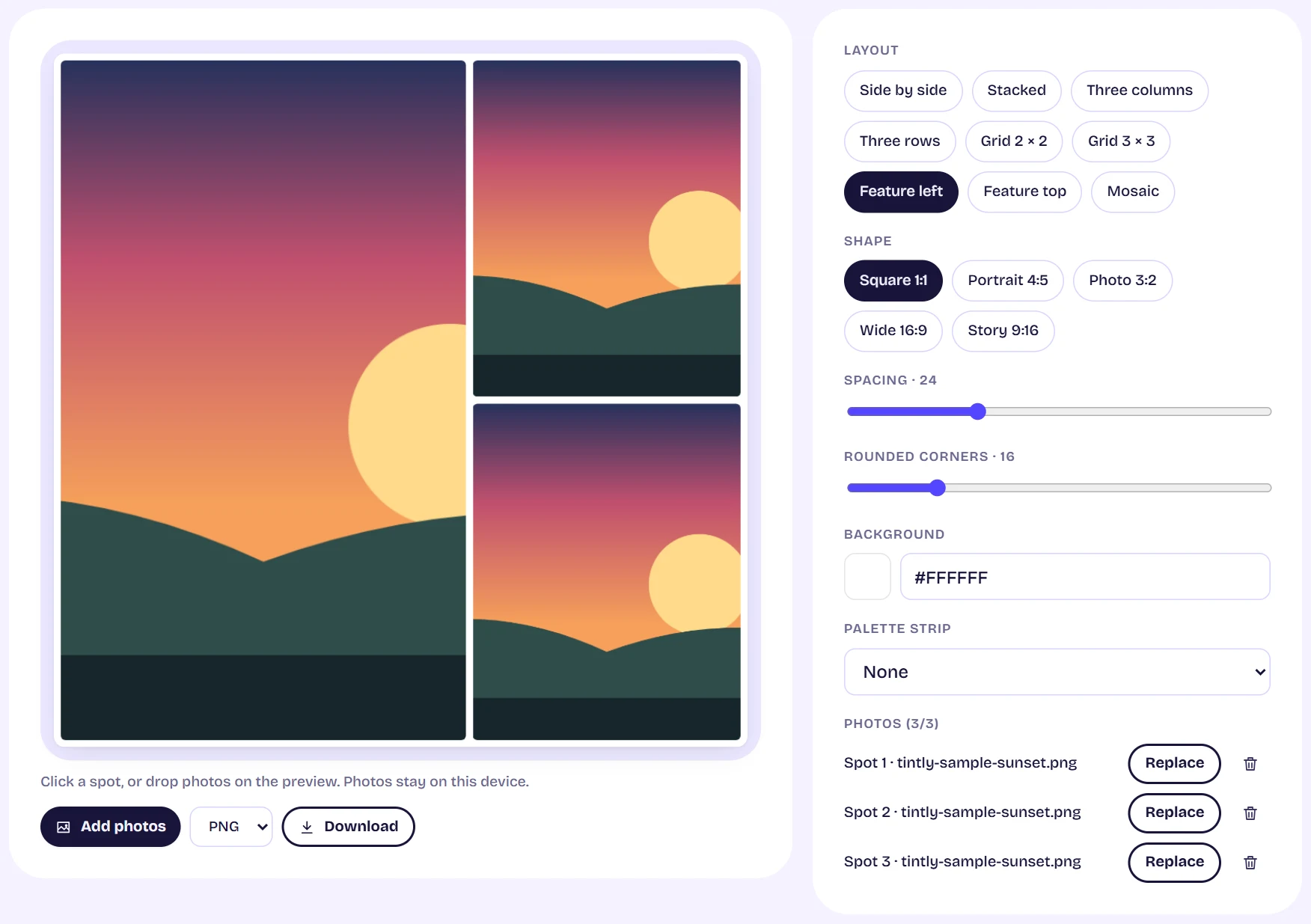
The collage maker showing a Feature left layout of three sunset photos, with layout, shape and spacing controls on the right Download
Pick PNG or JPG and press Download. The collage is drawn at 2400 pixels on its long side, using the same drawing as the preview.
Tips
- If a layout has fewer spots than photos you added, the extra photos are skipped with a message.