How to build color harmonies on the wheel
Pick a base color, choose a harmony and open the result as a palette.
Open the color wheelChoose your base color
Click or drag on the wheel, or type a HEX code in Base color. The marker marked as the base shows where your color sits.
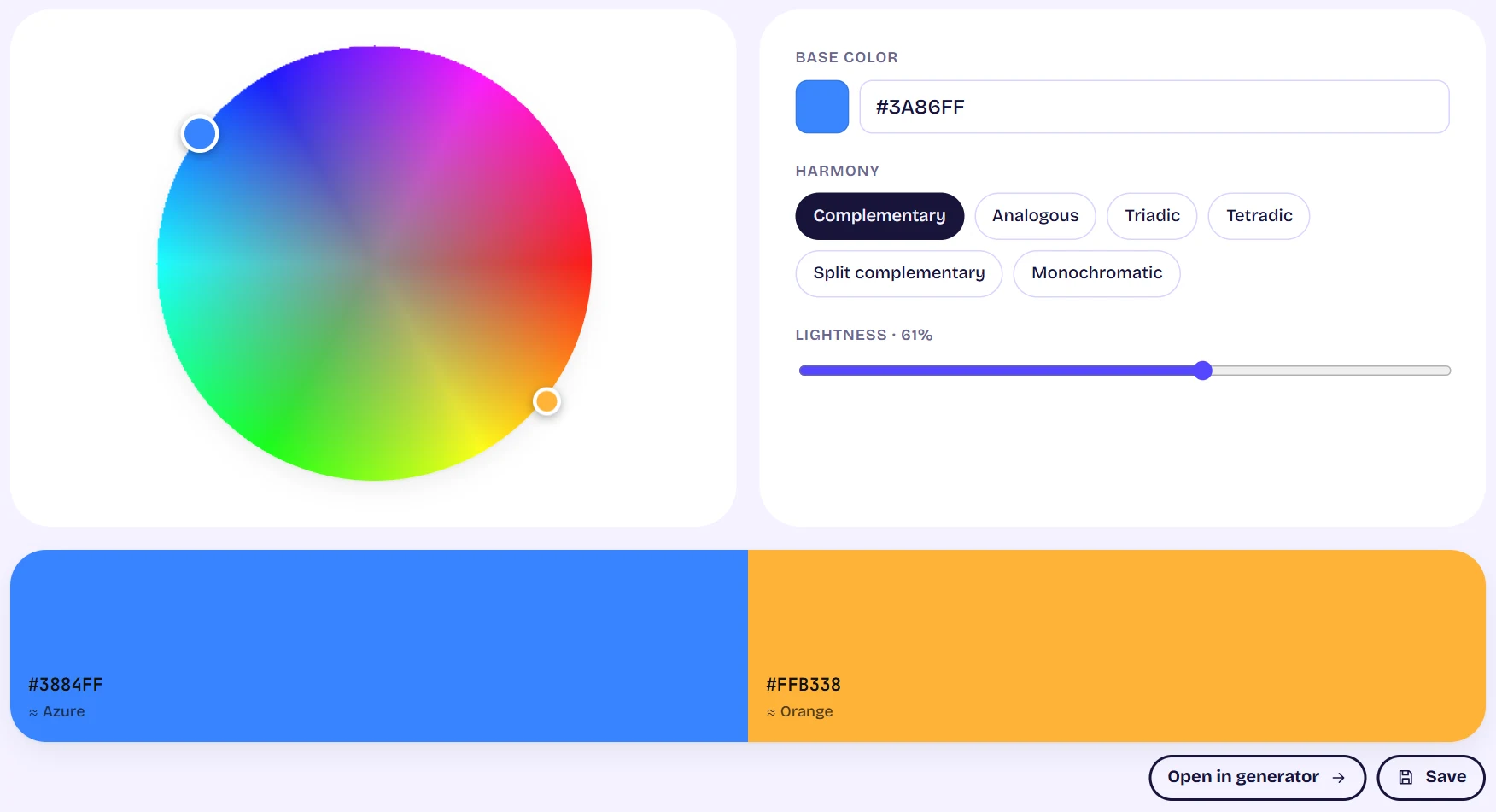
The color wheel with harmony markers, a base color field, harmony buttons and a lightness slider Pick a harmony
Choose Complementary, Analogous, Triadic, Tetradic, Split complementary or Monochromatic. The markers on the wheel and the swatches underneath update at once.
Adjust the lightness
Move the Lightness slider to make the whole set lighter or darker without changing its hue relationships.
Take it further
Under the swatches, Open in generator carries the colors to the generator, and Save adds them to your library. Click any swatch to copy its code.
Tips
- Analogous and monochromatic sets feel calm; complementary and tetradic sets feel energetic.
- Use the contrast checker before putting text on any of these colors.